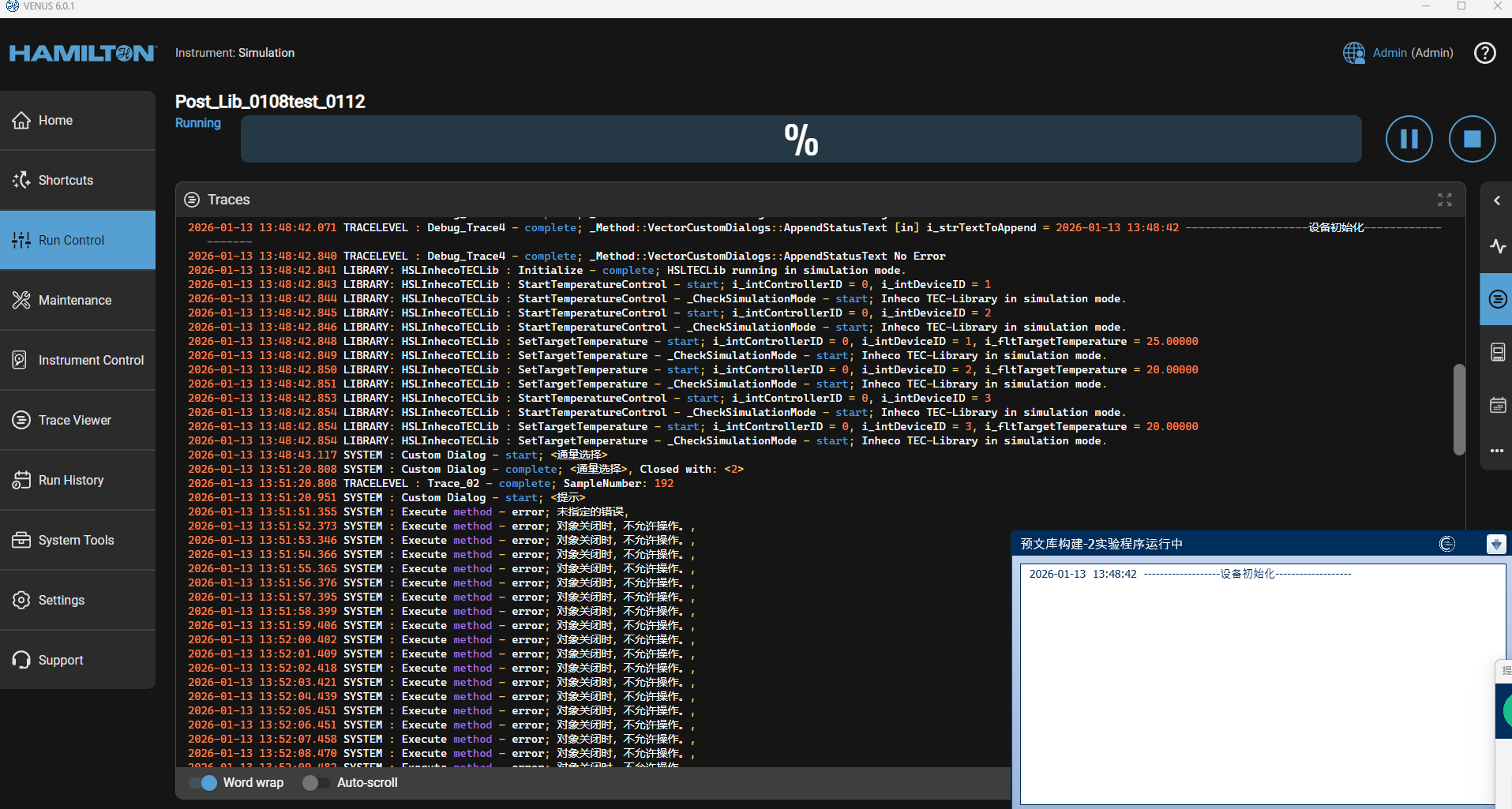
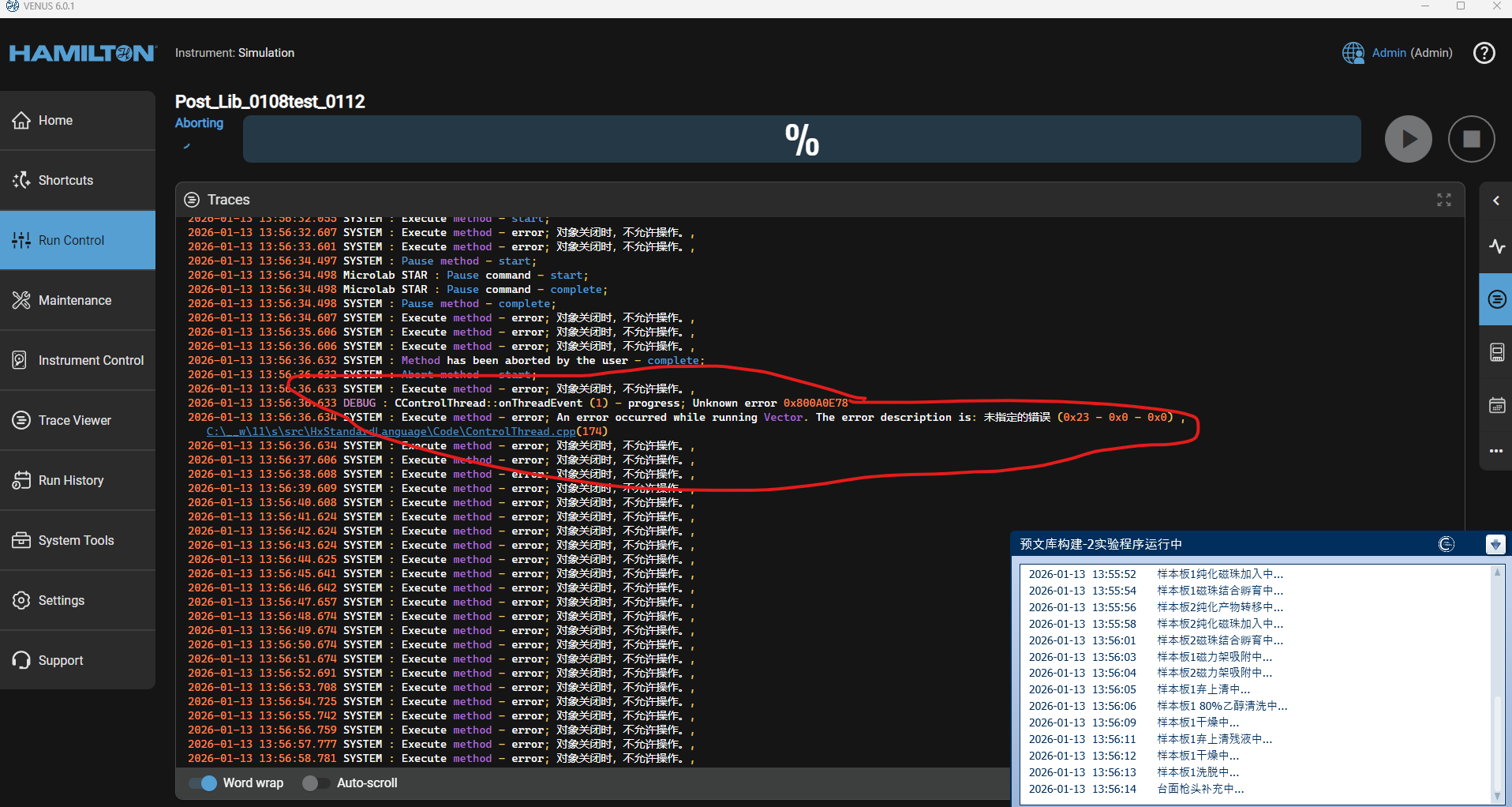
Hello everyone, recently when my Venus is running methods, it frequently (roughly 70% of the time) starts cyclically reporting the same error in the log, as shown below. Error Message is Chinese, it means “It’s not allowed to operate when the object is closed”
After this error occurs, the method can continue running, but it fails to terminate normally at the end and cannot be manually stopped.
When I attempt to terminate it manually, the following message is displayed:
I have to restart several relevant Hamilton services in Windows Services to force termination.
There are 6 Stars+ 6 computers in our laboratory, and this issue has occurred on 2 of the computers recently. The error also occurs when running in Simulation mode. We are using Venus 6.0.1, and the error still persists when trying to run via Hx Run Control. The operating system is Windows 11.
Please let me know if more information is needed.
1 Like
Looks like it is trying to run a set temperature command on the inheco but it might be set to simulation mode? Venus would know how to handle this so its odd.. Did you intend for the inheco to be set to simulation?
Thank you for your reply. I didn’t intentionally set the Inheco device to simulation mode, and this error occurs regardless of whether the device is in simulation or normal mode. In the meantime, we’ve also run tests and confirmed the error pops up both when the Inheco device is powered on and when it’s powered off. Additionally, this error also occurs when no Inheco-related methods are in use at all.
Hi @Charlie,
The error you’re experiencing is likely due to a failed SQL connection, as denoted by the error code 0x800A0E78. This is supported by the following: the error occurs continuously throughout the method (SQL is updated with each pipetting step), occurs in instrument and simulation runs, causes methods to not end properly, resolves on restarting of Services, and started recently. That last item suggests that something was modified on the PCs (Windows Updates, security settings, etc.) which is interfering with the SQL server connection.
To start, try testing the SQL Database Connection in System Config Editor, then trying Preparing the Database. If both of those options fail, then I suggest reaching out to your IT department to investigate further, as they can help identify any recent PC modifications that may be causing this issue.
Let me know if you need instructions on checking/preparing the SQL Database.
Thank you,
Dan
4 Likes
Hi @DanHartman_Hamilton,
Could you please provide instructions on how I should check and prepare the SQL database?
Thank you
Hi @Charlie,
Here are instructions to test the SQL connection and prepare the SQL Database. Note that Preparing the Server will delete any current runs stored in the Run History and Trace Viewer sections of the VENUS 6 GUI, as these are stored in the default Hamilton Vector Database. The trace and .mdf/.ldf files will still be available in their default folders, but they won’t be accessible through the GUI.
-
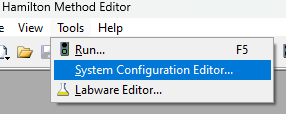
Access System Configuration Editor, either through the Tools menu of Method Editor or Run Control, or the System Tools menu of the VENUS 6 GUI
-
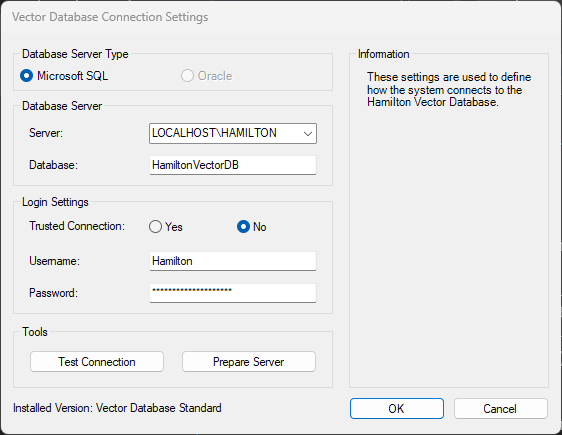
In System Settings of the System Config Editor, go to the Sample Tracking Settings section, click on the Vector Database connection setting, then click on the ellipsis button that appears on the right of the window of that row.
- In the window that pops up, there is a section called Tools with two buttons: Test Connection and Prepare Server. Start with Test Connection, which only requires clicking the button and waiting for a new window to pop up with a response.
-
If the response is “The connection has been successfully tested” then there is no need to Prepare Server, instead you’ll need to reach out to your IT to look into what might be causing the SQL connection issues at runtime. If the connection fails, then continue with the following steps to Prepare Server.
-
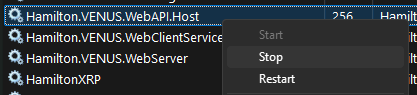
Open Task Manager, go to Services, and Stop the Hamilton.VENUS.WebAPI.Host service.
-
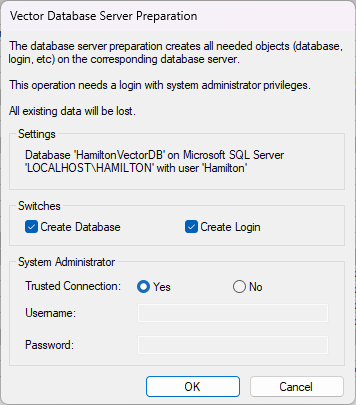
Return to the Vector Database Connection window and click on Prepare Server. In the window that pops up, leave all the defaults selected except for Trusted Connection, which should be switched to Yes. Click OK, then Yes. If the response is “The server has been successfully prepared” then Start the Hamilton.VENUS.WebAPI.Host service and perform some test runs to see if the error has cleared. If the error continues, then reach out to IT to look into other potential causes. If preparing the server fails, then continue with the following steps.
-
Retry Prepare Server, but leave Trusted Connection set to No and input the following username/password:
- Username: sa
- Passowrd: P@ssWord:DB@^VENUS#6
- If preparing the server still fails with these credentials, then either a different password was used on install or manually changed at a later time, or there is an issue with the SQL Server install itself. In either case, your best path forward would be to work with IT to determine what is causing the SQL Server to fail, and ultimately might require a reinstall of the SQL Server itself.
Thank you,
Dan
4 Likes
Hi @DanHartman_Hamilton ,
Thank you for your reply.
I followed your instructions to perform the operation, and the response in the “Test Connection” of step 3 was “The connection has been successfully tested”. It seems that I have to turn to the IT support team. However, we do not have a dedicated IT staff at present, and I am currently in charge of these related matters.
Now I want to reinstall SQL Server, and I would like to know if I can achieve the goal of reinstalling the SQL Server database without reinstalling Venus? This SQL Server was installed together with Venus when Venus was first set up.
Thank you
Hi @Charlie,
Yes, it’s possible to reinstall the SQL Server without reinstalling VENUS, as it’s a standalone application provided by Microsoft. It can be uninstalled through Windows Apps by following the prompts after selecting Uninstall.
For installation, we have a guide to assist with this process, available at this link. The installer can be found in the ‘redist’ subfolder of the VENUS 6 installer folder (this is outlined in the guide as well).
As you are only experiencing this issue on 2 out of 6 PCs, I suggest comparing Windows Update History across the PCs to see if there are any differences. There have been Windows Updates in the past which have directly affected SQL Servers and .NET Frameworks, both of which VENUS use. If you are able to identify updates on the two failing PCs that aren’t on the other four, or vice versa, then either post them here, or search their codes through Microsoft to determine any known issues and potential fixes (either a new update currently available or rolling back the offending update).
Thank you,
Dan
1 Like