Hi all,
I have a script for the Hamilton ML STAR that was written in Venus 4 and I want to develop the same script for a Hamilton VANTAGE using Venus 6.
At the moment, my plan is to rebuild the script step by step using the Venus 4 script as a reference, but I wanted to check and see if there is a more efficient way to go about doing this.
Is there perhaps an integrated way to carry out this conversion? If not, I am open to any tips and tricks anyone may have.
Thank you,
Julian
You shouldn’t have to. It should work as it’s backwards compatible except for IDL tools. The Vantage has the Cognex barcode scanner.
Thank you for your reply!
I figured it would be forwards/backwards compatible if I was converting a Venus 4 script for STAR to a Venus 6 script for STAR, but will this also be the case since it’s being adapted to a different instrument?
I’ve imported scripts written in Venus 6 for STAR onto Venus 4 software without issue, so that much I can also confirm. Just haven’t tried it with a cross-instrument goal!
Hi @julianscags,
As noted, the transition from VENUS 4 to VENUS 6 is fairly straightforward, with only a couple potential pitfalls to look out for:
- When possible, don’t import a package file from VENUS 4 into VENUS 6,. Instead install/move any necessary files to the VENUS 6 environment. This is not feasible in most situations due to the number of custom files used for more complicated methods, so importing is more common.
- When importing a package file, make sure not to import “original Hamilton files”, and take care when overwriting any files to avoid issues with versioning. There are a couple threads which touch upon this in which VENUS 6 files were overwritten by VENUS 4 files causing various errors.
In terms of going from a STAR instrument to VANTAGE, there are several considerations that are VENUS version agnostic:
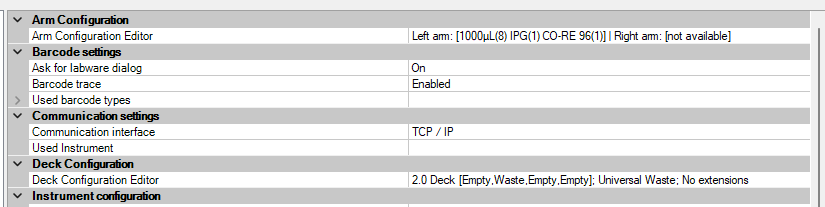
- Following import, open System Configuration Editor, go to the Microlab STAR/VANTAGE menu in the sidebar, then use the Deck Configuration and Arm Configuration Editors to set up the software with the configuration matching the live system.
-
Open the imported Deck Layout. The editor will display a VANTAGE deck with the original carriers from the STAR setup along with blanks in the deck where Waste and EE slots are located. Move around the carriers as needed to match the live system, then modify the deck layout:
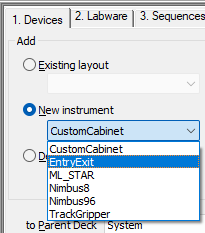
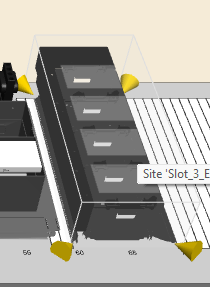
a. If the VANTAGE has a TrackGripper, EntryExit, or Custom Cabinet, add this to the system in the Devices tab of Deck Layout Editor using the “New Instrument” drop-down
b. Delete the STAR waste bar and add a new waste matching the VANTAGE waste from the Labware tree under VANTAGE > Waste Solutions. Repeat for the MPH96 waste if applicable.
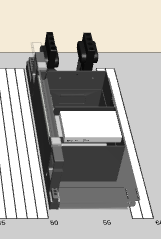
c. If the VANTAGE has an EntryExit, add to the deck by browsing to “C:\Program Files (x86)\Hamilton\Labware\ML_STAR\CORE” and select “EntryExitDrawer.tml”. It will snap-in to any empty EE slot selected from the config editor.
d. Run Sequence Validation to check for and delete any extraneous default sequences (or track down anything that should not have been deleted).
-
After finalizing and saving the Deck Layout, switch to the imported method. If the TrackGripper or EntryExits were added to the Deck Layout, the Toolbox will be updated with new library options for these devices. Most of the functions are the same between the instruments, however there are a couple that need to be opened and double-checked/modified for proper functionality:
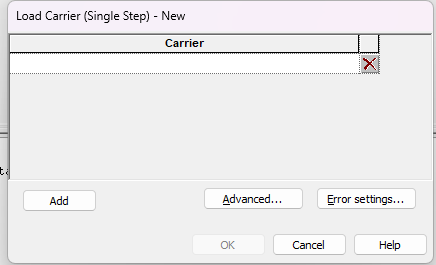
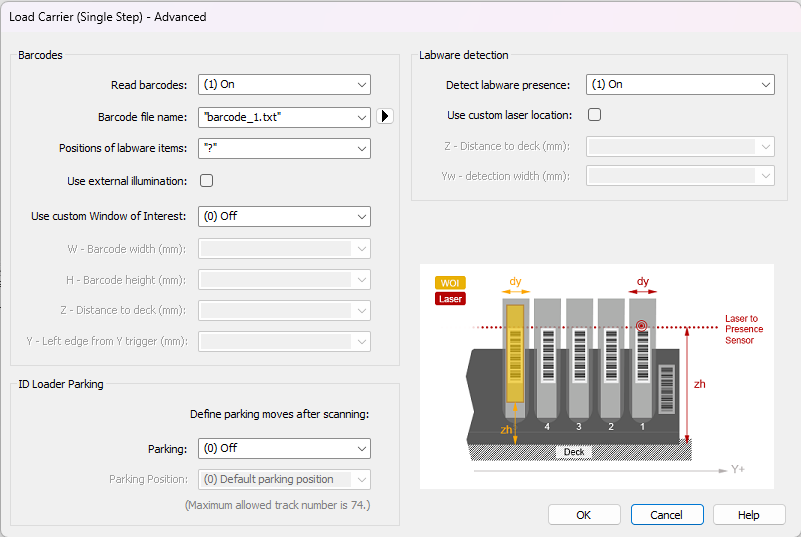
a. Any ‘Load Carrier’ steps need to be opened to confirm Labware Definition selection. If barcode scanning is used, open the Advanced window as well and make modifications accordingly.
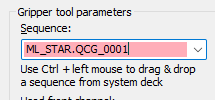
b. Any ‘1000uL Channel CO-RE Grip Get Plate’ steps need to be opened and have their Gripper Tool Sequence changed to use the QCG sequence instead of the STAR’s CO-RE Grippers
If you run into any issues during the conversion, let me know and we can address them.
Thank you,
Dan
4 Likes
Hi Dan,
Thank you for this comprehensive breakdown of the process. This is valuable help and I appreciate it. I’ll apply what has been described here and come back if I have questions.
Have a great Friday!
Best,
Julian
2 Likes