Is there a way to add fonts to the Hamilton user prompts? Looking for a way to transfer long strings to an off-instrument MBR and if I could convert this string to a barcode via custom font, my users could simply scan that instead of typing 30+ characters.
I have a code128 font that you could use. I can’t seem to upload it here. message me your email address and I can send it to you.
You can double click and install it, then it shows up as any other font. You still have to encode the Code 128 start / stop / checksum though, which might be tricky in Venus.
Another option is the Barcode python library that can generate png’s. Example below.
import cv2
import os
import numpy as np
from PIL import Image # Used by python-barcode for image output
import barcode # Library for generating barcodes
from barcode.writer import ImageWriter # Writer to save barcodes as images
— Configuration for ArUco Markers —
Define the ArUco dictionary type. DICT_5X5_100 means 5x5 bits and 100 unique markers.
ARUCO_DICT = cv2.aruco.DICT_5X5_100
Size of the generated marker image in pixels (e.g., 200x200 pixels).
Markers will be square.
MARKER_SIZE_PIXELS = 200
Directory where the generated ArUco marker images will be saved.
ARUCO_OUTPUT_DIR = ‘aruco_markers’
— Configuration for Code 128 Barcodes —
Size of the generated barcode image in pixels (width, height).
Note: The ‘barcode’ library scales based on options like ‘module_height’.
BARCODE_OUTPUT_DIR = ‘code128_barcodes’
BARCODE_MODULE_HEIGHT = 15 # Height of the barcode bars in mm (affects overall height)
BARCODE_FONT_SIZE = 10 # Font size for the human-readable text below the barcode
BARCODE_TEXT_DISTANCE = 5 # Distance between barcode and text in mm
BARCODE_QUIET_ZONE = 6 # Quiet zone around the barcode in mm
— 1. ArUco Marker Generation Function —
def generate_aruco_markers(dictionary_type, num_markers, marker_size, output_directory):
“”"
Generates a specified number of ArUco markers from a given dictionary
and saves each marker as an individual PNG image.
Args:
    dictionary_type (int): The OpenCV ArUco dictionary constant (e.g., cv2.aruco.DICT_5X5_100).
    num_markers (int): The total number of markers to generate (e.g., 100 for DICT_5X5_100).
    marker_size (int): The size of the marker image in pixels (e.g., 200 for 200x200).
    output_directory (str): The path to the directory where markers will be saved.
"""
# Create the output directory if it doesn't exist
if not os.path.exists(output_directory):
    os.makedirs(output_directory)
    print(f"Created output directory: {output_directory}")

# Load the specified ArUco dictionary
aruco_dict = cv2.aruco.getPredefinedDictionary(dictionary_type)

print(f"Generating {num_markers} ArUco markers from {cv2.aruco.getPredefinedDictionaryName(dictionary_type)}...")

# Iterate through each marker ID from 0 up to num_markers - 1
for i in range(num_markers):
    # Generate the marker image for the current ID.
    marker_image = cv2.aruco.generateImage(aruco_dict, i, marker_size)

    # Define the output filename for the current marker
    filename = os.path.join(output_directory, f"aruco_marker_{i}.png")

    # Save the generated marker image to the specified file
    cv2.imwrite(filename, marker_image)
    print(f"Saved {filename}")

print(f"\nFinished generating all {num_markers} ArUco markers in '{output_directory}' directory.")
— 2. Code 128 Barcode Generation Function —
def generate_code128_barcodes(num_barcodes, base_text, output_directory):
“”"
Generates a specified number of Code 128 linear barcodes, encoding
text in the format “base_text N” (e.g., “Test Barcode 1”).
Each barcode is saved as an individual PNG image.
Args:
    num_barcodes (int): The total number of barcodes to generate.
    base_text (str): The base string for the barcode content (e.g., "Test Barcode").
                     The number will be appended to this.
    output_directory (str): The path to the directory where barcodes will be saved.
"""
# Create the output directory if it doesn't exist
if not os.path.exists(output_directory):
    os.makedirs(output_directory)
    print(f"Created output directory: {output_directory}")

# Get the Code128 barcode class
Code128 = barcode.get_barcode_class('code128')

print(f"\nGenerating {num_barcodes} Code 128 barcodes...")

# Iterate through each barcode number
for i in range(1, num_barcodes + 1):
    # Construct the full text to encode in the barcode
    barcode_data = f"{base_text} {i}"

    # Create the barcode object
    # writer=ImageWriter() ensures the output is an image.
    # options control the appearance of the barcode.
    code128_instance = Code128(
        barcode_data,
        writer=ImageWriter()
    )

    # Define the output filename for the current barcode
    # The .save() method automatically appends the .png extension.
    filename_base = os.path.join(output_directory, f"code128_barcode_{i}")

    # Save the barcode image with specified options
    # module_height: height of the bars
    # font_size: size of the human-readable text
    # text_distance: space between barcode and text
    # quiet_zone: white space around the barcode
    code128_instance.save(
        filename_base,
        options={
            'module_height': BARCODE_MODULE_HEIGHT,
            'font_size': BARCODE_FONT_SIZE,
            'text_distance': BARCODE_TEXT_DISTANCE,
            'quiet_zone': BARCODE_QUIET_ZONE
        }
    )
    print(f"Saved {filename_base}.png")

print(f"\nFinished generating all {num_barcodes} Code 128 barcodes in '{output_directory}' directory.")
— Main Execution Flow —
if name == “main”:
# — Option 1: Generate ArUco Markers —
# Uncomment the line below to generate ArUco markers
# generate_aruco_markers(
# dictionary_type=ARUCO_DICT,
# num_markers=100, # For DICT_5X5_100, there are 100 markers (IDs 0-99)
# marker_size=MARKER_SIZE_PIXELS,
# output_directory=ARUCO_OUTPUT_DIR
# )
# --- Option 2: Generate Code 128 Barcodes ---
# Uncomment the line below to generate Code 128 barcodes
generate_code128_barcodes(
    num_barcodes=50,
    base_text="Test Barcode",
    output_directory=BARCODE_OUTPUT_DIR
)
2 Likes
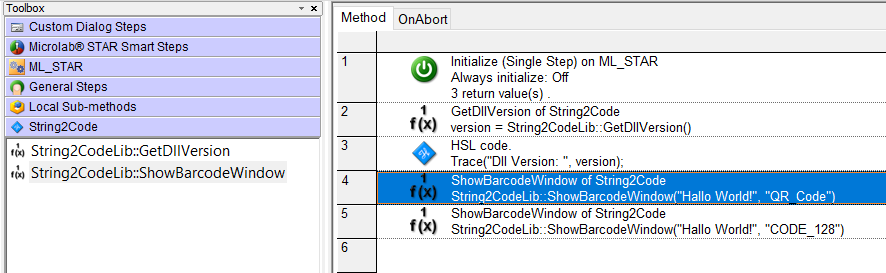
I have developed a simple program for this, including:
- a wrapper to integrate it directly into a Venus method, and
- a standalone UI exe.
It is MIT Open Source: Tools/String2Code at main · VerisFlow/Tools · GitHub
For more details, please refer to the README.
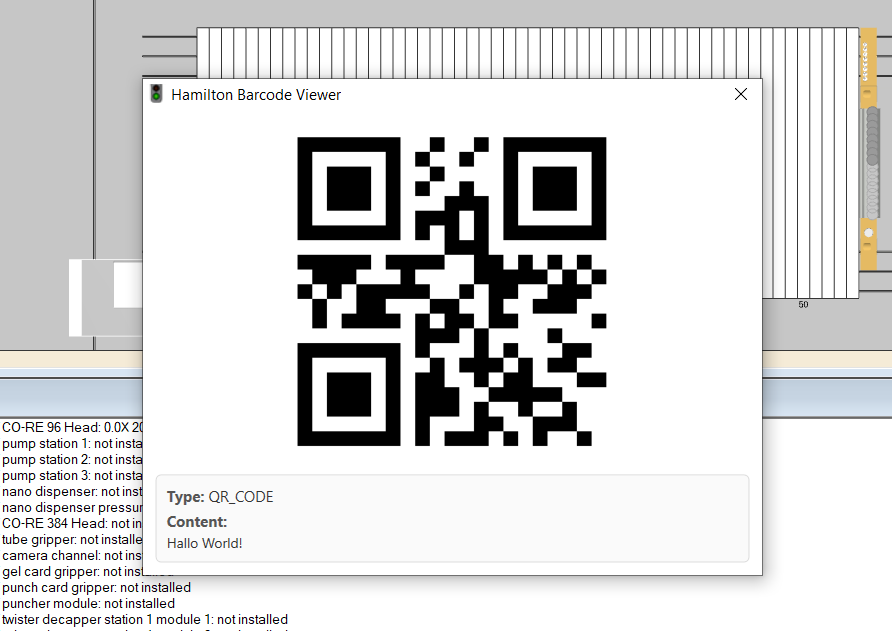
It supports several types of 1D and 2D barcodes. I suggest using QR Codes.
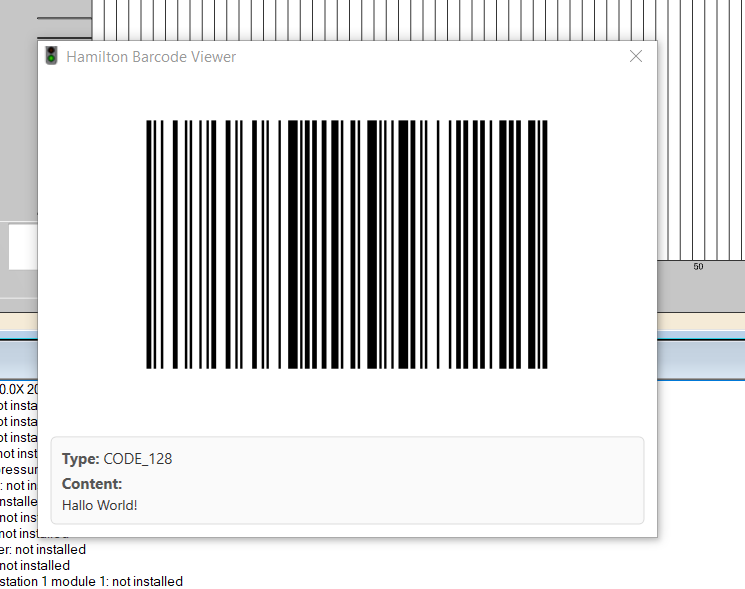
Note: When using Code 128, if there are too many characters, it will be difficult to scan the barcode from a screen.
Below are some test results in Hamilton Venus 4.5:
-
Demo method:
-
Test QR Code:
-
Test Code 128
4 Likes